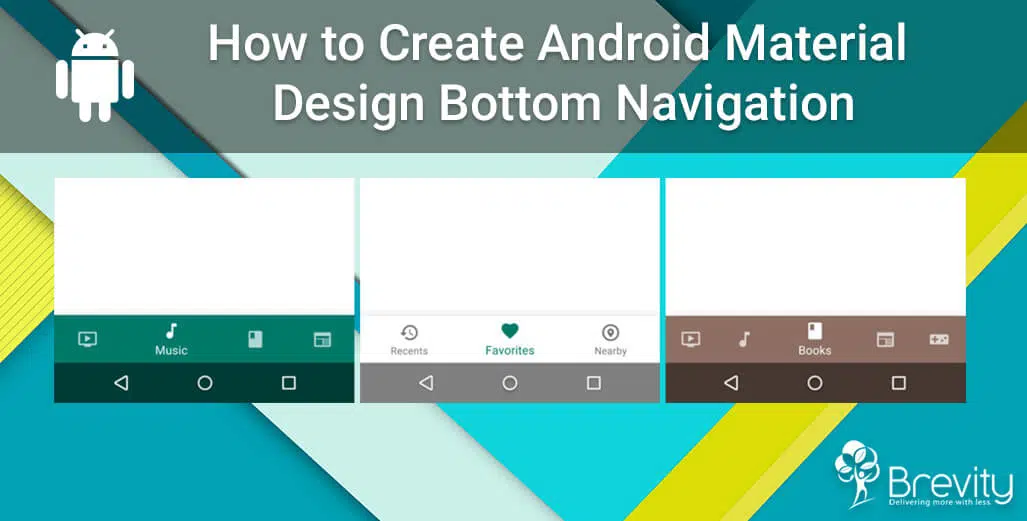
How to create Android material design bottom navigation
Google announced Material Design Support Library in their Google IO 2015. This month Google announced that there’s a new element to be added in Material Design components and it’s the Bottom Navigation. In this tutorial we’ll have a look on Android Material Design Bottom Navigation and how to implement it and understand its parameters and functions.
Quick Overview
Bottom navigation bars make it easy to walk through between top-level views in a single tap as it provides quick navigation between top-level views of an Android Application Development.
And according to Google design guidelines, the bottom navigation should consist of three to five items. In this tutorial we will be building 2 Activities, one has three buttons and the other has four buttons on the bottom navigation bar.
It consists of .XML file in menus and a java code to inflate this layout in your activity.
Three Buttons Navigation:
- Creating Android Project, In Android Studio, create a new project by navigating to File ⇒ New Project and fill all the required details. When it prompts to select a default activity, select Empty Activity and lets name MainActivity.
- We need to add Material Design Support Library so we can use it, so open build.gradle file and add the following code:
- Let’s create the menu file that represents the icons and its labels, So under res ⇒ menu add new menu resource file, name it three_buttons_menu and add the following code:
<!--?xml version="1.0" encoding="utf-8"?--> - Open the layout file the main activity activity_main.xml and add below code:
<!--?xml version="1.0" encoding="utf-8"?-->
- And finally Open the layout file the main activity MainActivity.java and add below code:
import android.support.design.widget.BottomNavigationView;
import android.support.v7.app.AppCompatActivity;
import android.os.Bundle;
import android.view.MenuItem;
import android.widget.Toast;public class MainActivity extends AppCompatActivity {@Override
protected void onCreate(Bundle savedInstanceState) {
super.onCreate(savedInstanceState);
setContentView(R.layout.activity_main);BottomNavigationView bottomNavigationView = (BottomNavigationView)
findViewById(R.id.bottom_navigation);
//Attach the listener
bottomNavigationView.setOnNavigationItemSelectedListener(
new BottomNavigationView.OnNavigationItemSelectedListener() {
@Override
public boolean onNavigationItemSelected(@NonNull MenuItem item) {
switch (item.getItemId()) {case R.id.recent_item:
Toast.makeText(MainActivity.this, "Recent Item Selected", Toast.LENGTH_LONG).show();
break;
case R.id.location_item:
Toast.makeText(MainActivity.this, "Favorite Item Selected", Toast.LENGTH_LONG).show();
break;
case R.id.favorite_item:
Toast.makeText(MainActivity.this, "Location Item Selected", Toast.LENGTH_LONG).show();
break;
}
return true;
}
});}
}
dependencies {

//Design support Library

compile 'com.android.support:design:25.0.1'

}
Related Post


-
F
-
A
-
Q
Bottom navigation is a menu placed at the bottom of an Android app that helps users quickly move between the main sections of the app. Users can switch between these sections with a single tap instead of opening a menu or going back through several screens. It is useful for apps that have a few important sections that users need to access regularly.
According to the guidelines mentioned in the blog, a bottom navigation bar should normally have three to five items. Keeping the number of options limited makes the navigation easier to understand and use. Each item can have an icon and a label that clearly tells users what section or feature they will open.
Bottom navigation gives users quick access to the main areas of an Android application from any relevant screen. It reduces the number of steps needed to move between important sections and keeps these options easy to find. This can make the overall app experience simpler and more convenient for users.
The blog explains that bottom navigation can be created using a menu XML file and Java code inside the activity. The menu file contains the icons and labels that users see, while the Java code connects these options to the navigation bar and handles user selections. The Android Material Design support library is also used to provide the bottom navigation component.
To use the bottom navigation component described in the blog, developers first need to add the Android Material Design Support Library to the project's build file. This library provides the required bottom navigation component and other design features. Once the library is added, developers can use the component in the Android project.
A menu resource file is created inside the app's `res/menu` folder to define the options shown in the bottom navigation bar. Developers can add items to this file with their icons and labels, such as Recent, Location, or Favorite. These menu items are then connected to the bottom navigation component in the activity layout.
The Java code can listen for a user's selection and identify which navigation item was tapped. The app can then perform an action, such as opening another section or showing a message. This allows each bottom navigation option to provide the correct response when the user taps it.
Yes, bottom navigation can be designed with different numbers of options, as long as the number stays within the recommended range. The blog demonstrates examples with three and four buttons. Developers can select the number of navigation items based on the main sections and features that users need to access frequently.
Want to Scale Your Business? Let’s Meet & Discuss!

CANADA
30 Eglinton Ave W Mississauga, Ontario L5R 3E7

INDIA
3rd floor Purusharth Plaza, Amin Marg, Rajkot, Gujarat. 360002
INDIA
1116, Zion Z1, Sindhu Bhavan Marg, Nr. Maple County Road, Bodakdev, Ahmedabad, Gujarat. 380059
Get a Quote Now
Let's delve into a thorough understanding of your challenges and explore potential solutions together