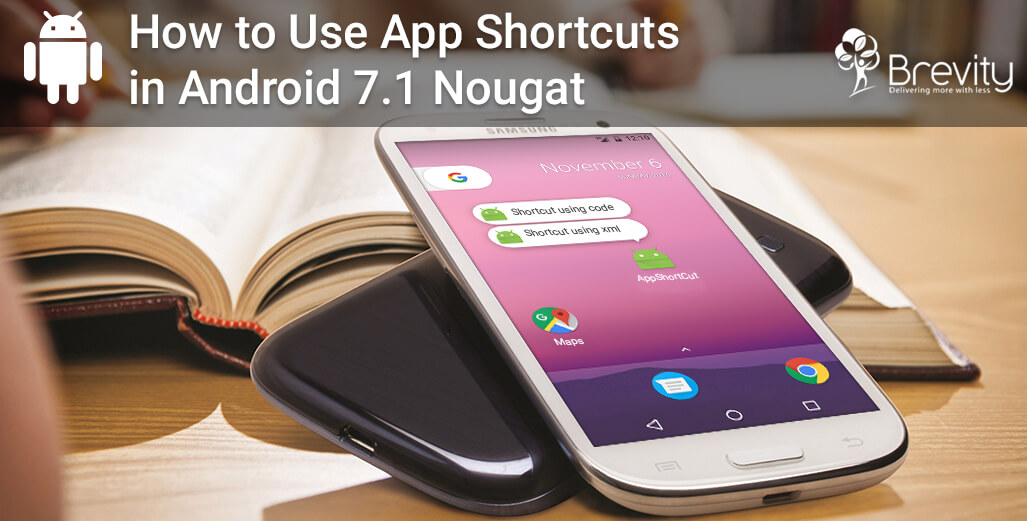
How to use app shortcuts in Android 7.1 Nougat
From Android 7.1 nougat, You can define shortcuts to specific actions in your Android Application. App shortcut menu will be appear on long press on launcher icon of app. By using app shortcut user can quickly start common task in application.
Generally Android App Shortcuts used to quickly perform bellow tasks :
- Navigating to a specific location
- To sent messages
- To set alarm
- The score for a specific game
- Playing the next episode of a TV show in a media app.
You can publish two types of Android App Shortcuts as like below :
- Static shortcuts
- Dynamic shortcuts
Static shortcuts
Static shortcuts are defined in resource (.xml) files. So it remain consistent over the lifetime of app’s current version.In this type of shortcut, you must wait until update of entire app to change the details of static shortcuts.
To create static shortcut follow bellow steps :
- Step 1: In app’s manifest file (AndroidManifest.xml), set intent filters to android.intent.action.MAIN action and category to android.intent.category.LAUNCHER of any activity.
- Step 2: Also set <meta-data> with android:name=”android.app.shortcuts” to same activity that references the resource file where the app’s shortcuts are defined.
- Step 3: Create a new resource file (res/xml/app_shortcuts.xml) where the app’s manifest shortcuts are defined.
- Step 4: In this .xml have <shortcuts> as root element.Bellow that root element you can set list of shortcut items by using <shortcut> elements.In <shortcut> elements, We can provide its icon, its description labels, and the intents that it launches within the app.
Example :
<!-- If your shortcut is associated with multiple intents, include them here. The last intent in the list is what the user sees when they launch this shortcut. -->
<!-- Specify more shortcuts here. -->
Dynamic shortcuts
Dynamic shortcuts are defined in class (.java) files. So it can change at runtime in the application.
To create a dynamic shortcut, ShortcutManager API is used. There are different methods available as below:
- Publish: To publish shortcut,Use setDynamicShortcuts(List) to define list of dynamic shortcuts or use addDynamicShortcuts(List) for existing list of dynamic shortcuts.
- Update: To update shortcut, Use updateShortcuts(List) method.
- Remove: To remove a set of dynamic shortcut,Use removeDynamicShortcuts(List), and to remove all dynamic shortcuts,Use removeAllDynamicShortcuts().
Example :
ShortcutManager shortcutManager = getSystemService(ShortcutManager.class);

ShortcutInfo shortcut = new ShortcutInfo.Builder(this, "dynamicId")

.setShortLabel("My site")

.setLongLabel("Open My web site")

.setIcon(Icon.createWithResource(context, R.drawable.icon_website))

.setIntent(new Intent(Intent.ACTION_VIEW,

Uri.parse("https://www.brevitysoftware.com/")))

.build();

shortcutManager.setDynamicShortcuts(Arrays.asList(shortcut));
Disabling Shortcuts
If you don’t want the users to select dynamic shortcuts. Then, use disableShortcuts(List), which removes the specified dynamic shortcuts and disables any pinned copies of these dynamic shortcuts.
If you want to provide an error message that appears when users attempt to launch a disabled dynamic shortcut, Use disableShortcuts (List, CharSequence).
Related Post



-
F
-
A
-
Q
App shortcuts are quick options that appear when a user presses and holds an app icon on the home screen. They allow users to open a specific feature or perform a common task without first opening the app and searching for it. For example, a shortcut can open a particular page, send a message, set an alarm, or continue playing media.
App shortcuts can help users quickly access common features or actions inside an application. They can be used to open a specific location, send a message, set an alarm, check a game score, or play the next episode of a show. This saves time and gives users a faster way to reach the features they use most often.
Android provides two main types of app shortcuts: static shortcuts and dynamic shortcuts. Static shortcuts are defined as part of the app and normally stay the same until the app is updated, while dynamic shortcuts can be changed while the app is running. Developers can choose the type based on whether the shortcut needs to remain fixed or change over time.
Static shortcuts are created in the app's XML resource files and normally remain unchanged during the current version of the app. They are useful when the shortcuts represent features that are always available and do not need regular changes. If the shortcut details need to be changed, the app generally needs to be updated with a new version.
To create static shortcuts, developers first connect the required activity with the app launcher in the Android manifest file. They then add the required shortcut information and create an XML file that contains the shortcut details. In that file, developers can define shortcut names, icons, descriptions, and the actions that should open when a user selects them.
Dynamic shortcuts are shortcuts that can be created and changed while the app is being used. Unlike static shortcuts, developers can add, update, or remove them without waiting for a new version of the entire app. They are useful when shortcut options need to change based on user activity, recent actions, or information available in the app.
Developers can use Android's Shortcut Manager to manage dynamic shortcuts. It provides options to add new shortcuts, update existing ones, remove selected shortcuts, or remove all dynamic shortcuts. This gives the app more control over which quick actions are shown to users and allows the shortcuts to change when needed.
Yes, developers can disable dynamic shortcuts when they no longer want users to use them. Android provides an option to disable selected shortcuts and can also show an error message when a user tries to open a disabled shortcut. This can be useful when a particular feature is no longer available or should not be accessed through the shortcut.
Want to Scale Your Business? Let’s Meet & Discuss!

CANADA
30 Eglinton Ave W Mississauga, Ontario L5R 3E7

INDIA
3rd floor Purusharth Plaza, Amin Marg, Rajkot, Gujarat. 360002
INDIA
1116, Zion Z1, Sindhu Bhavan Marg, Nr. Maple County Road, Bodakdev, Ahmedabad, Gujarat. 380059
Get a Quote Now
Let's delve into a thorough understanding of your challenges and explore potential solutions together